Charts & graphs
Free gauge chart maker
Make gauge charts, speedometer graphics, and meter graphs online—set a KPI value and scale, open semicircle or horizontal dial templates, tune pointer and threshold colors, and export PNG, SVG, or PDF. Free dial generator, no account required.
- Free online tool—no credit card or signup
- Speedometer charts and chart meters from dial templates
- Pointer, progress arc, and threshold band styling
- Export PNG, SVG, or PDF meter graphics for dashboards
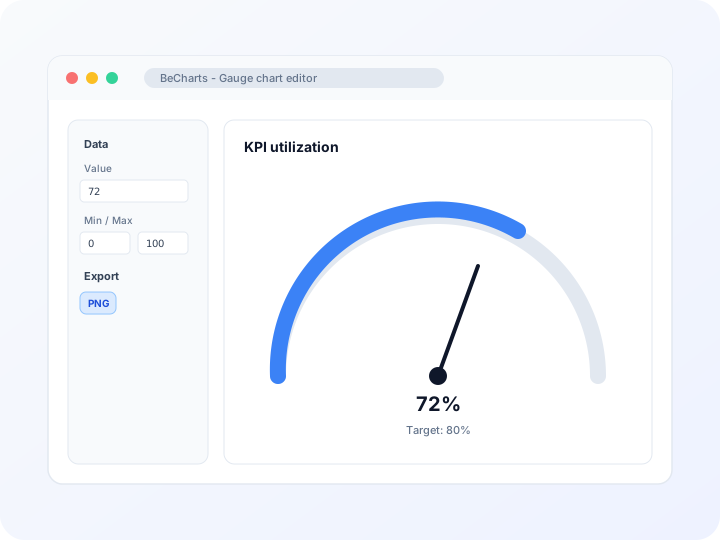
Styling
Pointer, progress arc, and threshold bands
Tune axis line colors, progress fill, split lines, tick labels, and pointer style in the Series panel. Set min, max, and arc sweep angle for semicircle or full dial layouts.
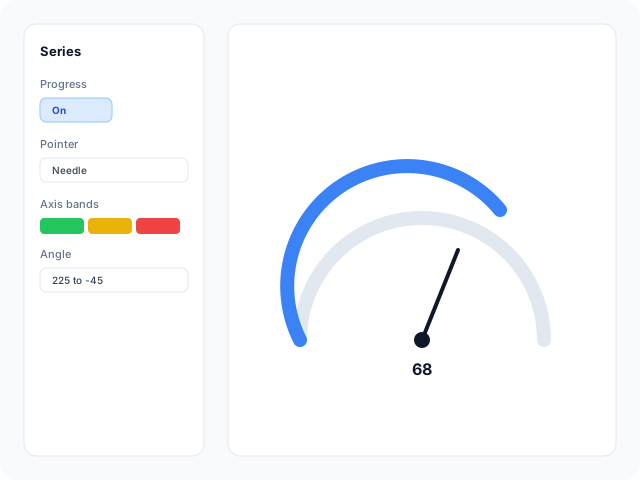
Data
Set KPI value and scale in the panel
Enter the current metric in Series → Data, then adjust min and max for your score range. Update center detail text and units without spreadsheet import.
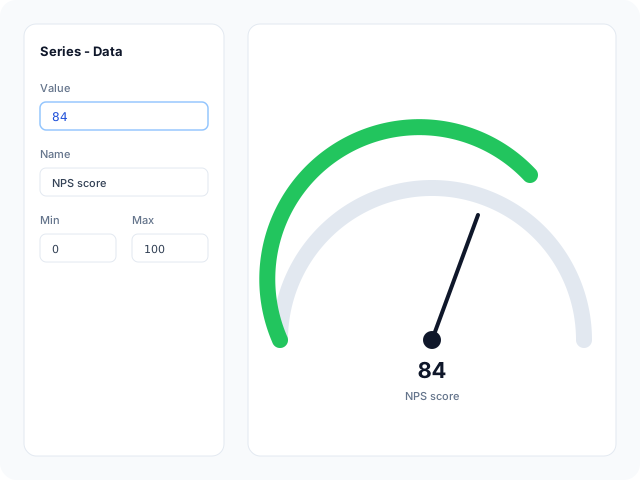
Output
Export for dashboards and reviews
Download high-resolution PNG for slide tiles, vector SVG for design tools, or PDF for status reports. Dial colors and center labels carry through to every export format.
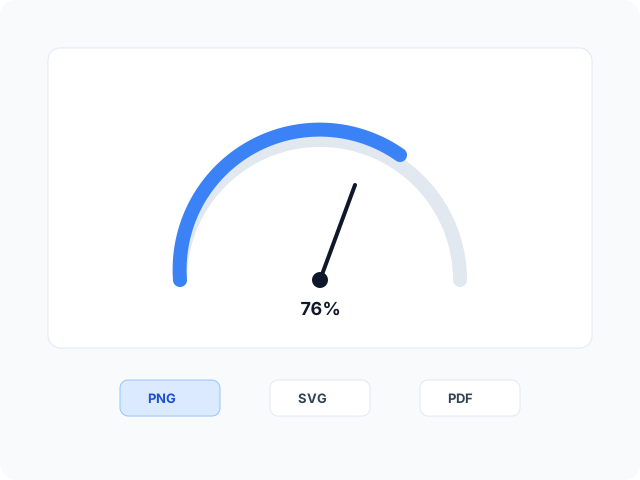
Gauge chart and speedometer layouts
Start from a semicircle dial, horizontal chart meter, progress arc, or multi-band threshold layout, then open any example in the editor.
- Basic semicircle gaugeClassic KPI dial with needle and tick marks on a 0–100 scale. Replace the sample score with your utilization or satisfaction metric.
- Horizontal gauge chartFlat-bottom semicircle arc suited to dashboard footers and wide slide tiles. Edit the value and min/max after opening the grade-style layout.
- Progress arc speedometerSpeedometer-style dial with a filled progress track behind the pointer—useful when the arc itself should show how far a target is reached.
- Threshold color bandsPre-styled green, blue, and red axis segments for at-a-glance status. Adjust band breakpoints after opening the template.
Popular use cases for gauge charts
Gauge and dial charts highlight one headline metric on a scale. These are common workflows teams build in the editor and export for dashboards.
- KPI dashboard tilesShow quota attainment, uptime, or revenue pace as a single dial when executives need one number with context on a slide or wallboard.
- Customer satisfaction scoresPlot NPS, CSAT, or survey averages on a 0–100 dial with warning bands when scores drift below a target range.
- Goal and target trackingVisualize percent-to-goal for quarterly OKRs or project milestones when one metric should dominate a compact graphic.
- Horizontal gauge for wide tilesUse a flat-bottom chart meter when footer space is wide but short—common for utilization and quota dials on executive dashboards.
- Training and assessment scoresSummarize a single test or certification result on a dial when the audience cares about pass thresholds more than trend history.
- Status emails and reportsExport a branded dial PNG for weekly health summaries when a bar chart would feel heavy for one KPI.
Editor features for gauge charts
Dial templates, value controls, and export options to move from a headline metric to a presentation-ready gauge graphic quickly.
- Gauge chart templatesJumpstart from basic, progress, and threshold-band dial layouts with sample KPI values you can open in one click.
- Value, min, and max controlsSet the current metric in Series → Data and define the scale endpoints so the needle lands in the right zone.
- Pointer and progress stylingCustomize needle shape, anchor dot, progress arc width, and round caps for speedometer-style dials.
- Threshold color segmentsPaint axis line bands in green, amber, or red so stakeholders read on-track versus at-risk status without studying numbers.
- Arc angle and tick layoutControl dial sweep, split line count, and axis labels when you need a semicircle footer tile or a wider arc.
- Export and shareSave PNG, SVG, or PDF files for dashboard mockups, executive summaries, and weekly status decks.
Common gauge and meter chart searches
How this tool handles typical tasks—from building gauge charts and speedometer graphics to styling chart meters and exporting dial images.
- Gauge chart makerOpen a dial template, enter your KPI value in Series → Data, and adjust min and max for your scale. The needle and center label update as you edit.
- Gauge chartsBrowse semicircle, horizontal, and threshold-band gauge chart templates. Each layout opens in the editor with a sample value you replace with your metric.
- Chart meterBuild a chart meter with tick marks, pointer, and center readout on a 0–100 or custom scale. Tune arc width and band colors in the Series panel.
- Speedometer chartGenerate speedometer-style arcs with a needle pointer and optional progress fill. Change arc sweep and split count to match your reporting range.
- Gauge graphTurn one headline number into a gauge graph dial—set value and scale, style the pointer, and export PNG or SVG without drawing arcs manually.
- Meter graphPlot a single metric on a meter graph layout when dashboards need a compact dial instead of a bar or line trend.
How to make a gauge chart online in 4 steps
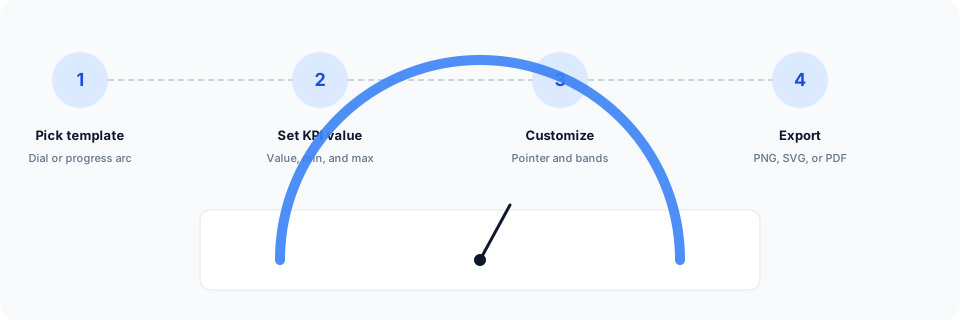
- Open the gauge chart maker or pick a semicircle, horizontal, or speedometer template below.
- Enter your KPI value in Series → Data and set min and max to match your score range.
- Customize pointer style, progress arc, threshold colors, and center labels until the dial reads clearly.
- Export as PNG, SVG, or PDF and add the meter graph to your dashboard tile, slide, or status report.
What is a gauge chart?
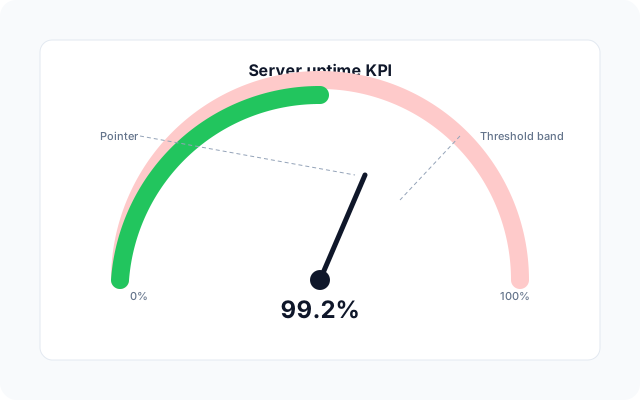
A gauge chart—also called a gauge graph, meter graph, chart meter, or speedometer chart—displays one primary value on a circular or semicircular scale. A needle or progress arc shows where the metric sits between a minimum and maximum.
Gauge chart makers let you enter a value and scale instead of drawing speedometer graphics by hand. Set the current score in the editor, define min and max, and the dial positions the pointer and optional progress fill automatically.
Gauge charts fit single-metric dashboards, satisfaction scores, and goal-tracking tiles when one number should dominate a compact graphic. Use a bar or line chart instead when you need trends over time or comparisons across categories.
Gauge chart vs bar chart vs radar chart
Use a gauge chart when one primary metric needs a dial read on a fixed scale—quota percent, uptime, or a satisfaction score. Bar charts compare categories at one snapshot. Radar charts plot several dimensions at once on a web of spokes.
Gauges read best as single-tile graphics with a clear min and max. In BeCharts you set the value in the Series panel, tune threshold colors, and export PNG, SVG, or PDF when the dial is ready for your dashboard or deck.
Gauge chart templates
Browse KPI dial examples, then open any layout in the editor to replace the sample value with your own metric.
Explore BeCharts
Jump to templates, the editor, documentation, and guides for gauge charts and related workflows.
Gauge chart templates
Browse semicircle, progress, and threshold-band dial layouts and open any example in the editor.
Open chart editor
Start with a gauge template or switch to another chart type anytime.
BeCharts usage guide
Value entry, min/max scale, and styling options for gauge series and pointers.
Radar chart maker
Compare several metrics on spoke axes when a single dial is not enough.
Pie chart maker
Use part-to-whole slices when the story is share across categories, not one KPI scale.
Chart template gallery
Explore bar, line, scatter, funnel, and 15+ other chart types.
Frequently asked questions
- How do I create a gauge chart online?
- Click "Create your gauge chart" or open any template on this page. Enter your KPI value in Series → Data, set min and max, tune colors and labels, then export PNG, SVG, or PDF from the toolbar.
- Is this a free gauge chart maker?
- Yes. You can open gauge templates and the editor without a credit card or account. Export options are available from the toolbar at no cost.
- What is a gauge graph or meter graph?
- Gauge graph and meter graph are common names for the same dial layout—a single value on a scale with a needle or progress arc. BeCharts uses gauge series in the editor; the workflow is identical.
- Can I make a horizontal gauge chart?
- Yes. Open the horizontal gauge template with a flat-bottom semicircle arc, or adjust start and end angles in the Series panel to reposition the dial for wide dashboard tiles.
- How do I build a speedometer chart?
- Start from the progress arc template with tick marks and a needle pointer. Set your value and min/max, then tune arc sweep and band colors until the speedometer graphic reads clearly.
- Can I import CSV data into a gauge chart?
- Gauge series use a single value set in the Series → Data panel rather than spreadsheet rows. Enter your metric manually after opening a template.
- How do I set warning and danger zones on a gauge?
- Edit axis line color segments in the Series panel. Templates with threshold bands include default breakpoints you can adjust to match on-track, at-risk, and critical ranges.
- What value ranges work on gauge charts?
- Samples often use 0–100 scales. Change min and max in the editor to match percentages, scores, or custom units—keep the range tight so small moves remain visible.
- Can a gauge chart show more than one metric?
- Most dial layouts focus on one needle for clarity. For multiple KPIs, export separate gauges or open another template for each metric.
- What is the difference between a gauge chart and a pie chart?
- Gauges plot one value on a continuous scale with a needle or arc. Pie charts show parts of a whole across slices. Pick a gauge when the story is how close you are to a target on one scale.
- What file formats can I export?
- PNG and SVG are supported for digital use, and PDF for documents. Exports reflect dial colors, pointer, and center labels from the editor.