Charts & graphs
Free online Sankey diagram generator
Use this Sankey diagram maker to build flow charts in your browser—edit source, target, and value links, tune band colors and node spacing, and export PNG, SVG, or PDF. A free Sankey chart creator with no account required.
- Free Sankey diagram generator—no credit card or signup
- Online Sankey chart creator with source-target-value links
- Budget, cash flow, and energy flow templates
- Export PNG, SVG, or PDF for slides and reports
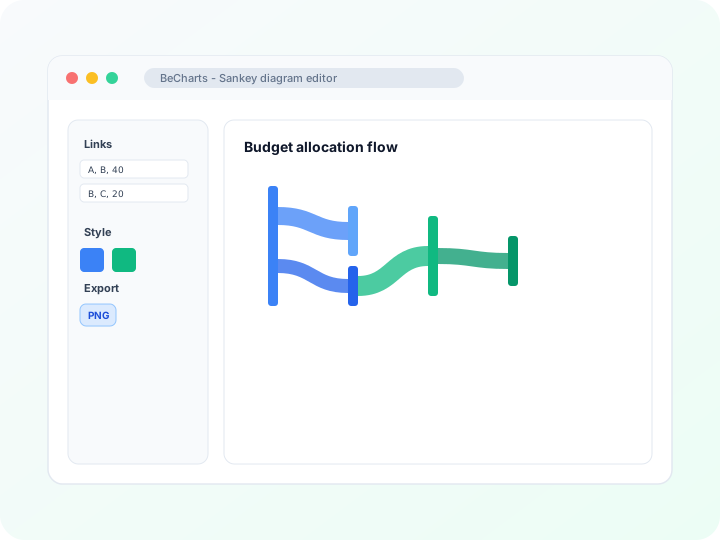
Styling
Node spacing, link color, and labels
Adjust node width, vertical gap, link opacity, gradient line styles, and label visibility in the editor sidebar. Keep dense flows readable with tuned column spacing.
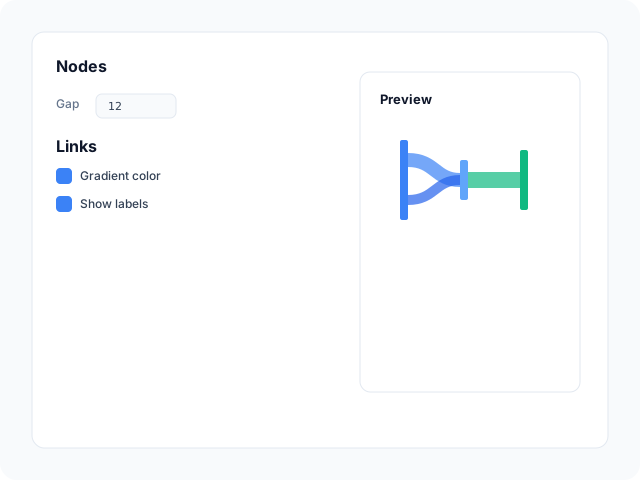
Data
Edit flows in the network editor
Add nodes and source-target links with numeric values in the network data panel. Replace sample stages from any template—link width scales automatically from your weights.
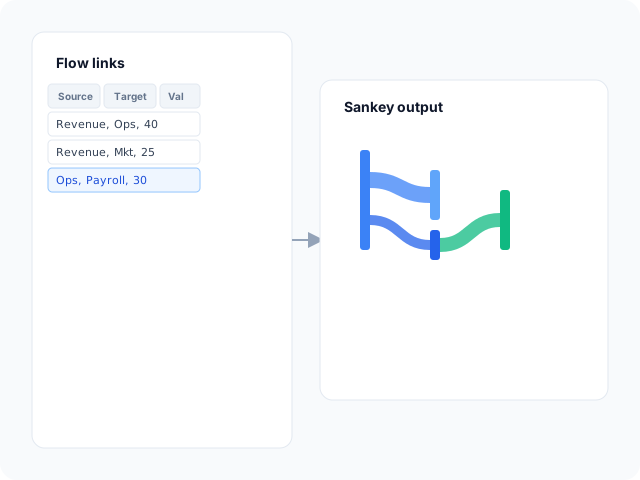
Output
Export for articles and decks
Download high-resolution PNG for slides, vector SVG for design tools, or PDF for documents. Band colors and node labels carry through to every export format.
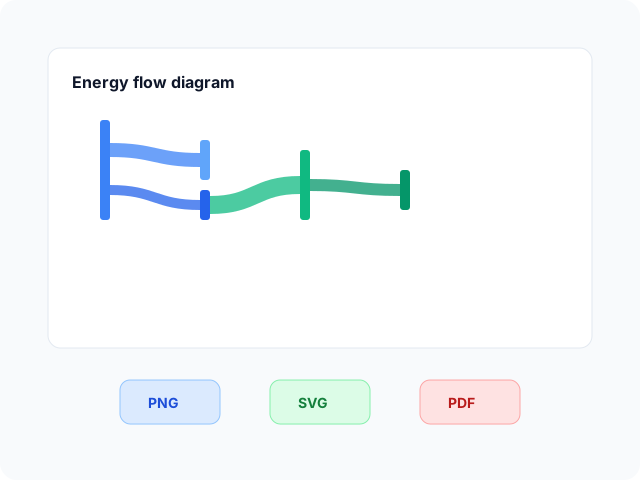
Sankey diagram layouts
Start from a basic horizontal flow, a vertical stage layout, or a multi-column preset—then open any example in the editor.
- Basic horizontal SankeyLeft-to-right flow with gradient link bands. Ideal for budget splits, process handoffs, or any source-target volume story.
- Vertical Sankey layoutTop-to-bottom stages when vertical space fits your slide better than a wide horizontal band chart.
- Multi-stage flow diagramSeveral columns of nodes with curved links—useful for product lifecycle, energy, or cost allocation stories with many stages.
Where flow diagrams help
Sankey charts show how volume moves between stages. These are common workflows teams build in the editor and export for stakeholder decks.
- Budget and cash flow chartsTrace how revenue, expenses, or cash moves between accounts and categories—band width shows dollar or percentage share on one directional graphic.
- Energy and material flowsLoad sample U.S. energy flow data from the EIA panel, then refine nodes and link values before exporting for policy or sustainability slides.
- Marketing and sales funnelsShow how leads progress through channels and stages when you need branching paths rather than a single stacked funnel column.
- Supply chain and logisticsMap shipments or inventory between suppliers, warehouses, and regions on one directional flow graphic.
- User journey handoffsVisualize how sessions or accounts move between product areas when multiple exit and entry paths matter.
- Process and workflow auditsHighlight where work accumulates or drops off across sequential teams without rebuilding curved links manually.
What you get in the editor
Flow templates, network editing, optional live data fetch, and export options to move from link rows to a readable Sankey chart quickly.
- Sankey diagram templatesJumpstart from horizontal, vertical, and multi-column flow examples you can open in one click.
- Network link editorAdd nodes and source-target-value rows in the network data panel. Changes update band widths immediately.
- Link and node stylingControl gradient link colors, node gap, label placement, and emphasis highlights for dense flows.
- EIA energy flow dataFetch sample U.S. energy Sankey data from the API panel by year, then refine nodes and links in the editor.
- Horizontal and vertical layoutsSwitch orientation presets when your slide layout favors wide stages or stacked columns.
- Export and shareSave PNG, SVG, or PDF files for presentations, documentation, and publication workflows.
Common Sankey diagram generator searches
How this tool handles typical requests—from building an online Sankey diagram to exporting a free flow chart for slides or reports.
- Sankey diagram generatorGenerate a flow diagram from source-target-value link rows in the editor. Band thickness scales from your weights—download PNG, SVG, or PDF when the layout reads clearly.
- Online Sankey diagramBuild the chart entirely in the browser. Pick a horizontal or vertical template, edit nodes and links in the network panel, and preview band widths live without installing software.
- Sankey chart creatorCreate Sankey charts for budget, energy, or process stories. Replace sample stages, tune link colors and node spacing, then export presentation-ready files.
- Sankey diagram makerOpen a template, map your flow data to nodes and links, style labels and gradients, and export from the toolbar—no desktop charting app required.
- Free Sankey diagram makerTemplates, the network editor, and PNG, SVG, and PDF export are free. No account or credit card is needed to style links and download files.
- How to make a Sankey diagramFollow the four-step workflow below: choose a layout, enter source-target-value links, customize colors and spacing, then export. Sample EIA energy data is available in the editor.
How to make a Sankey diagram online in 4 steps
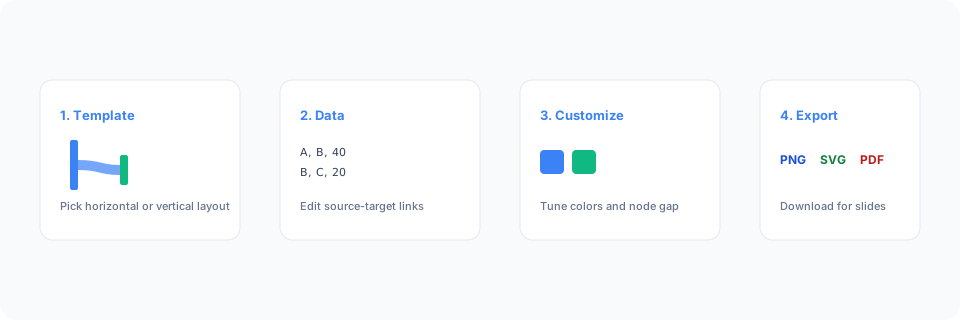
- Open the Sankey diagram maker or pick a horizontal, vertical, or multi-stage template below.
- Replace sample nodes and source-target-value links in the network editor—or fetch EIA energy flow data.
- Customize link colors, node spacing, labels, and chart size until bands read clearly.
- Export as PNG, SVG, or PDF and add the flow diagram to your slide deck, report, or article.
What is a Sankey diagram?
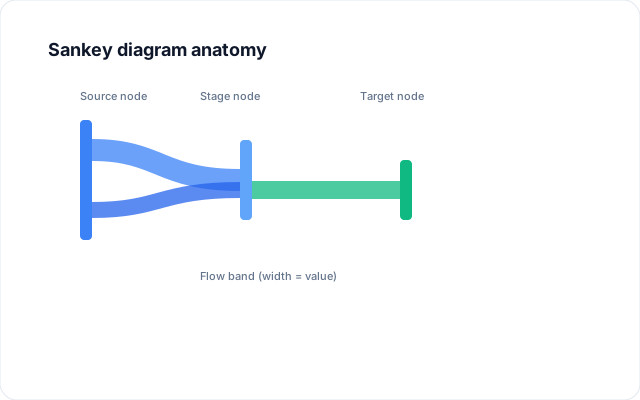
A Sankey diagram—also called a Sankey chart or flow diagram—shows how a quantity moves between stages or categories. Curved bands connect nodes; band width is proportional to flow value, which makes major paths and bottlenecks easy to spot.
Online Sankey diagram makers and generators let you enter source-target-value links instead of drawing bands by hand. Edit the network table, tune spacing and colors, and export when the flow story is clear.
Sankey charts work best for directional flows with consistent node names across links—not for unrelated category comparisons or bidirectional circular relationships (see chord diagrams for those).
Sankey diagram vs funnel chart vs chord diagram
Use a Sankey diagram when flow moves directionally between stages and band width should show quantity at each link. Funnel charts emphasize step-by-step drop-off in one primary path. Chord diagrams fit bilateral or circular relationships where return flows and segment arcs matter as much as left-to-right direction.
Keep node counts focused—very large networks become hard to read. Merge minor flows into an "Other" node when needed, then export PNG, SVG, or PDF.
Sankey diagram templates
Browse Sankey chart examples, then open any layout in the editor to replace sample nodes and links with your own flows.
Explore BeCharts
Jump to templates, the editor, documentation, and guides for Sankey diagrams and related workflows.
Sankey diagram templates
Browse Sankey layouts and open any example in the editor.
Open chart editor
Start with a Sankey template or switch to another chart type anytime.
BeCharts usage guide
Data formats, network editor controls, and styling options.
How to choose a chart
Pick the right visualization when flows, funnels, or relationships matter.
Funnel chart maker
Show sequential stage drop-off when branching Sankey paths are not needed.
Chart template gallery
Explore bar, line, pie, chord, and 15+ other chart types.
Frequently asked questions
- How do I make a Sankey diagram?
- Click "Create your Sankey diagram" or open any template on this page. Add nodes and source-target-value links in the network editor, adjust colors and spacing, then export PNG, SVG, or PDF from the toolbar.
- How do I make a Sankey diagram online?
- Pick a horizontal, vertical, or multi-stage template, replace the sample links with your flow data, tune band colors, and download the finished graphic—everything runs in the browser with no install.
- Is this a free Sankey diagram generator?
- Yes. Templates, the network editor, and export to PNG, SVG, and PDF are free. No account or credit card is required.
- What data format does a Sankey diagram need?
- You need a node list (names or ids) and link rows with source, target, and value fields. Source and target must match node names exactly so bands connect correctly.
- Can I import CSV into a Sankey diagram?
- Sankey charts use the dedicated network editor rather than CSV upload. Type or paste source-target-value rows in the link table, or start from a template and replace the sample flows.
- What is the difference between a Sankey diagram and a funnel chart?
- Funnel charts show sequential drop-off through ordered stages in one primary column. Sankey diagrams allow splits, merges, and branching paths between multiple nodes. Use funnels for simple stage conversion; use Sankey when flows recombine or branch.
- What is the difference between a Sankey diagram and a chord diagram?
- Sankey bands flow directionally between stage columns. Chord diagrams arrange categories on a circle with ribbons showing bilateral movement. Pick Sankey for left-to-right process stories; pick chord when circular relationships matter.
- Can I load sample energy flow data?
- Yes. Open a Sankey template and use the EIA energy flow panel to fetch U.S. flow data by year. Refine nodes and links afterward in the network editor.
- How do I keep labels readable on busy flows?
- Start with a simpler template, merge minor flows into an "Other" node, hide labels on small links, or increase chart height in the editor before export.
- Can I build a Sankey diagram in Excel or PowerPoint?
- BeCharts runs in the browser—you edit flows here, then export PNG, SVG, or PDF to insert into Excel workbooks or PowerPoint slides. There is no native Excel add-in; paste or import the exported image into your deck or sheet.
- Is a Sankey diagram the same as a flowchart?
- No. Generic flowcharts use boxes and arrows without proportional width. Sankey charts encode quantity in band thickness—better when the size of each flow matters.
- What file formats can I export?
- PNG and SVG are supported for digital use, and PDF for documents. Exports reflect link colors and node styles from the editor.