Charts & graphs
Free online pie chart maker
Make your own pie chart or pie graph online—enter slice values or import CSV, show percentage labels, style donut rings, and export PNG, SVG, or PDF. Free, no account required.
- Online pie chart maker—no credit card or signup
- Pie graph creator with percentage labels on slices or legend
- Start from a template, replace data, or clear rows for a blank chart
- Export PNG, SVG, or PDF for slides and reports
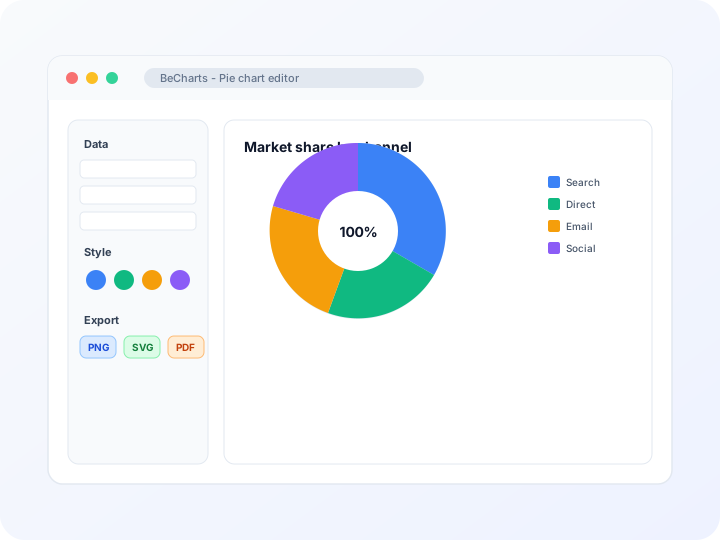
Styling
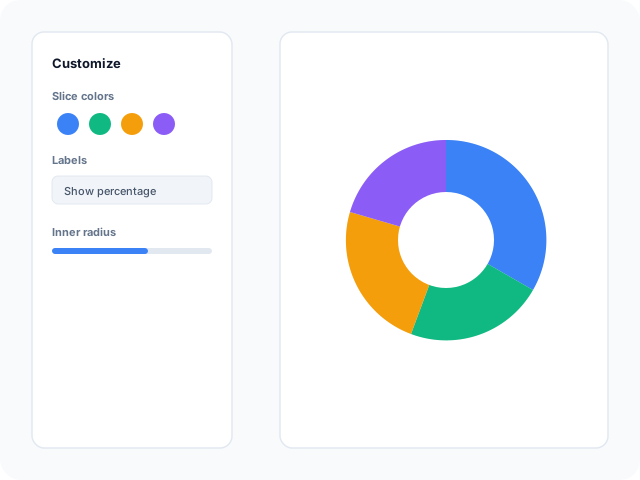
Fully customizable pie and donut charts
Adjust slice colors, border radius, label placement, and legend position in the editor sidebar. Switch between full pie, donut, rose, and half-doughnut layouts to match your report style.
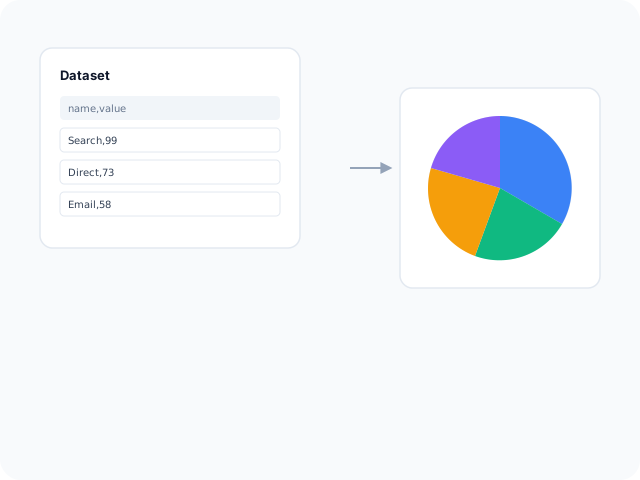
Data
Organize and import your data
Paste name-and-value rows into the data table, import CSV or Excel files, or describe the breakdown you need with AI assistance. Each row maps to a slice without manual angle math.
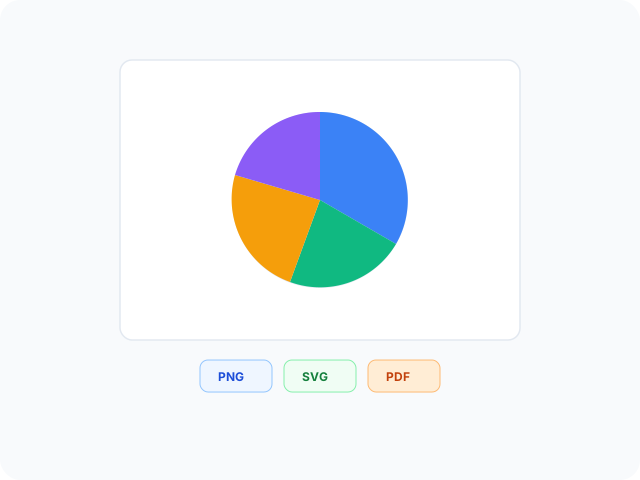
Output
Export for presentations and reports
Download high-resolution PNG for slides, vector SVG for design tools, or PDF for documents. Slice colors and labels you set in the editor carry through to every export format.
Pie chart layouts and chart types
Start from a layout that matches your story—classic pie, donut ring, rose chart, or half doughnut—then open any example in the editor.
- Basic pie chartShow how a total splits across a handful of categories. Ideal for market share, budget mix, or survey response breakdowns with five slices or fewer.
- Donut chartUse a ring layout when you want space in the center for a headline metric, title, or callout while slices show composition around it.
- Half doughnut chartFit a semicircle gauge-style graphic into tight dashboard tiles. Useful when vertical space is limited but you still need a part-to-whole view.
- Rose pie chart (Nightingale)Let radius as well as angle encode magnitude when categories differ widely in size. Rose layouts help when slice angles alone would look too similar.
- Rounded donut chartSoften slice corners for a modern slide aesthetic. Adjust inner radius and pad angle between slices in the Series panel after opening the template.
Popular use cases for pie charts
Pie and donut charts work when viewers need a quick sense of share. These are common workflows teams build with the editor and export for decks or reports.
- Market share and revenue mixShow how revenue or customers split across products, regions, or segments. Keep slice count low so the largest shares read at a glance.
- Survey and poll resultsPresent response percentages for multiple-choice questions. Label slices with category names and percentages for stakeholder summaries.
- Budget and spend allocationVisualize how a total budget divides across departments or cost centers. Donut layouts leave room for the total amount in the center.
- Traffic and channel attributionBreak down visits or leads by source—organic, paid, email, social—and highlight the dominant channel with color contrast.
- Portfolio or asset compositionIllustrate allocation across asset classes, project phases, or inventory categories when the story is proportional, not trend-based.
- Executive one-slide summariesExport PNG or PDF when a single graphic must communicate composition without a full dashboard. Templates speed up recurring quarterly updates.
Editor features for pie charts
Templates, styling controls, and export options to move from raw breakdown data to a clear part-to-whole chart quickly.
- Pie and donut templatesJumpstart from ready-made layouts—classic pie, doughnut, rose, half ring, and rounded donut examples you can open in one click.
- Slice stylingTune colors, borders, pad angle, label format, and legend placement so the chart matches your deck or dashboard.
- Percentage labelsDisplay each slice as a percent of the total on the chart or in the legend—useful for survey results, budget splits, and market-share slides.
- Data importBring spreadsheet data in through CSV upload or paste, then bind name and value columns to slices in the editor.
- AI-assisted setupDescribe the breakdown you need and generate sample rows, then refine values before rendering the chart.
- Export and shareSave PNG, SVG, or PDF files for presentations, documentation, and social posts.
Common pie chart searches
How this online pie chart maker handles typical tasks—from building your own graphic to showing slice percentages and exporting for slides.
- Online pie chart makerBuild a pie chart in the browser: open a template, paste name-and-value rows or import CSV, customize colors and labels, then download PNG, SVG, or PDF without installing software.
- Free pie chart creatorUse the editor and pie templates at no cost. No account or credit card is required to style slices, show percentages, and export presentation-ready files.
- Make your own pie chartReplace sample slice data with your categories and values, or clear the table and type rows from scratch. The chart updates as you edit so you control every segment.
- Pie chart maker with percentagesTurn on percentage labels in the Series panel so each slice shows its share of the total. Combine names, values, and percents on slices or move labels to an outside legend.
- Pie graph maker onlinePie graph and circle chart layouts use the same editor workflow. Pick a full pie, donut, or rose template and map spreadsheet columns to slice names and magnitudes.
- Blank pie chart starterOpen any pie template, delete the sample rows in the data table, and add your own categories. You get axes, legend, and label rules without drawing the circle manually.
How to make your own pie chart online in 4 steps
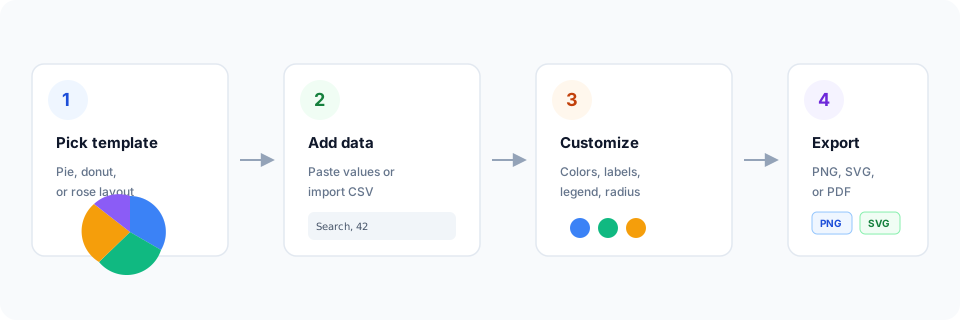
- Open the online pie chart maker or pick a pie, donut, or rose template below.
- Replace sample rows with your data, import CSV, or clear the table for a blank starter chart.
- Turn on percentage labels, adjust colors, and set legend position until the graphic reads clearly.
- Export as PNG, SVG, or PDF and add the file to your slide deck, report, or handout.
What is a pie chart?
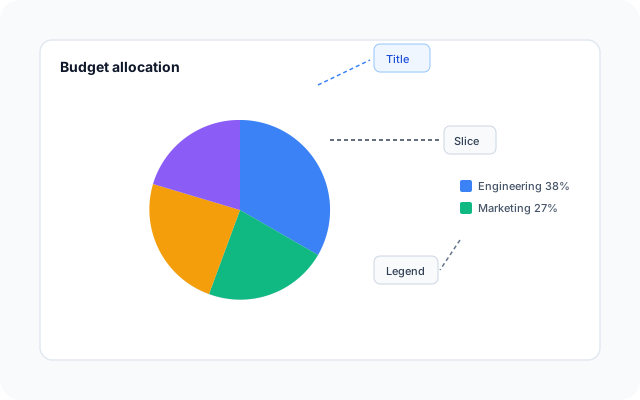
A pie chart—or pie graph, circle chart, or pie diagram—divides a circle into slices so each segment shows one category’s share of a total. The full ring represents 100%; slice angle (and radius in rose layouts) reflects how large each part is.
Online pie chart makers let you enter values instead of drawing arcs by hand. Paste a name-and-value table or import CSV, and the editor calculates slice sizes and optional percentage labels automatically.
Pie charts work best with a small number of segments—roughly two to seven—when differences between shares are easy to see. They fit market share, budget mix, and survey breakdowns where viewers need a quick part-to-whole read.
Pie chart vs bar chart vs donut chart
Use a pie chart when you have a small number of categories that sum to a meaningful whole and the story is about share, not exact rank order. Bar charts read faster when you compare many categories or need precise length comparisons at one point in time.
Donut charts use the same slice data as pies but add an inner hole for titles or headline metrics. Rose charts vary slice radius when values differ widely. In BeCharts you can switch layouts from any pie template and export PNG, SVG, or PDF when the graphic is ready.
Pie chart templates
Browse pie and donut chart examples, then open any layout in the editor to replace sample data with your own.
Explore BeCharts
Jump to templates, the editor, documentation, and guides for pie charts and related workflows.
Pie chart templates
Browse every pie and donut layout and open any example in the editor.
Open chart editor
Start with a pie chart template or switch to another chart type anytime.
BeCharts usage guide
Data formats, CSV import, and styling options for pie series and labels.
What is a pie chart?
Learn when pie charts work best and how they compare to bar charts.
How to choose a chart
Pick the right visualization when shares, trends, or comparisons matter.
Chart template gallery
Explore bar, line, scatter, combo, and 15+ other chart types.
More chart makers
Frequently asked questions
- How do I make a pie chart online?
- Click "Make your pie chart" or open any template on this page. Enter slice names and values in the data table, or import CSV, then adjust colors and labels before exporting PNG, SVG, or PDF from the toolbar.
- Is this a free pie chart creator?
- Yes. The online pie chart maker and templates are free to use without a credit card or account. Export options are available from the editor toolbar.
- Can I make a pie chart with percentages on the labels?
- Yes. Enable labels in the Series panel and choose a percentage format so each slice shows its share of the total. You can place names, values, or percents on slices or in an outside legend.
- How do I make my own pie chart from scratch?
- Open a pie or donut template, delete the sample rows, and type your categories and values. The chart rebuilds as you edit, so you can start from an empty table without redrawing the circle.
- Can I start from a blank pie chart?
- Yes. Templates load with sample data for reference—clear those rows in the dataset table to get a blank starter chart, then add your own slices and export when finished.
- What is the difference between a pie chart and a pie graph?
- They mean the same chart type. "Pie graph," "circle chart," and "pie diagram" are common synonyms in search; BeCharts uses one editor for all of them.
- Can I create a pie chart from CSV?
- Yes. Import a CSV from the dataset panel with name and value columns. You can edit cells after import and turn on percentage labels before exporting.
- How many slices should a pie chart have?
- Most pie charts read clearly with about five slices. Combine very small segments into an "Other" category if labels overlap or slices become too thin.
- What is the difference between a pie chart and a donut chart?
- Both use the same slice data. A donut chart adds an inner radius for a center title or metric. Adjust inner radius in the Series panel or start from a donut template.
- Is this a pie chart percentage calculator?
- The editor calculates each slice’s percentage from the values you enter and can display those percents on the chart. It is not a standalone calculator page—you build the full graphic and export it.
- When should I use a bar chart instead of a pie chart?
- Use bars when you compare many categories or need exact rank comparisons. Pie charts fit when categories are parts of one whole and you want a quick share read with few segments.
- Does BeCharts support 3D pie charts?
- No. This pie chart maker focuses on flat 2D pies, donuts, rose, and half-doughnut layouts with clean export for slides and reports.
- What file formats can I export?
- PNG and SVG are supported for digital use, and PDF for documents. Exports reflect the styles and percentage labels you set in the editor.