

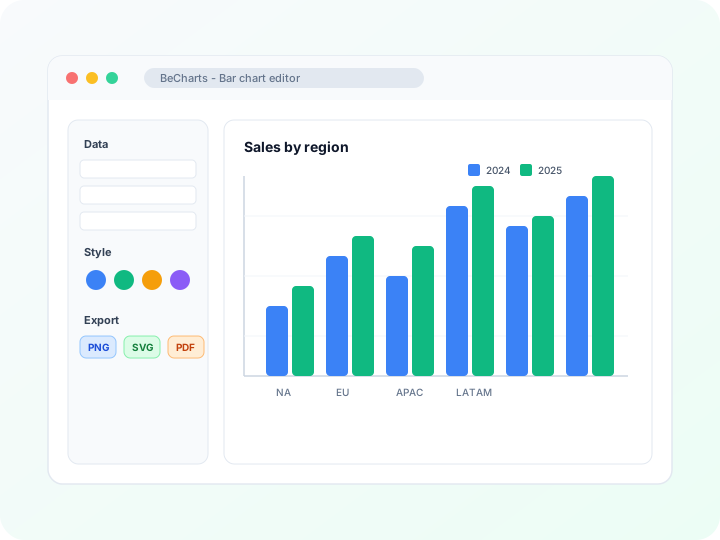
- Free bar graph maker online—no credit card needed
- Column chart creator with grouped, stacked, and horizontal layouts
- Export PNG, SVG, or PDF for slides and reports
- AI-assisted data setup and 20+ chart types in the editor
Fully customizable bar charts
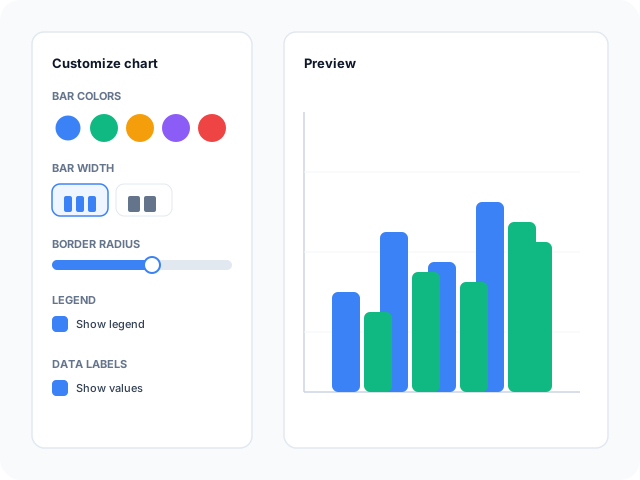
Adjust bar colors, border radius, axis labels, legends, and grid lines in the editor sidebar. Switch between vertical and horizontal orientation to fit long category names.
Organize and import your data
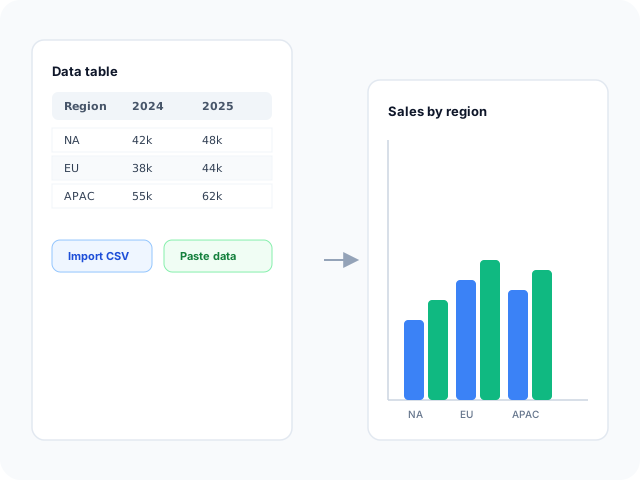
Paste values into the data table, import CSV or Excel files, or describe the dataset you need with AI assistance. Map columns to categories and series without rebuilding the chart from scratch.
Export for presentations and reports
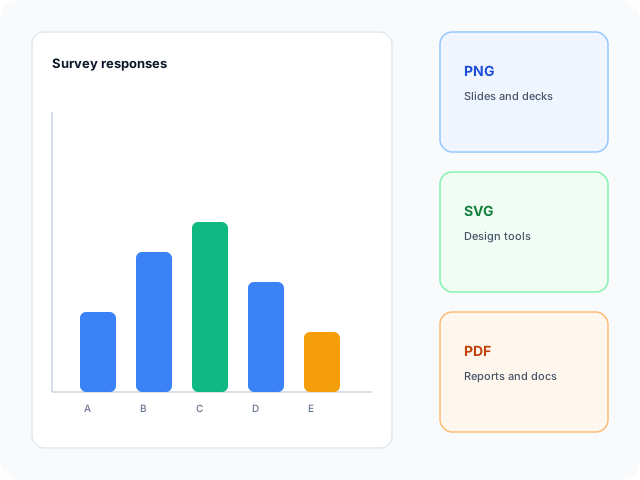
Download high-resolution PNG for slides, vector SVG for design tools, or PDF for documents. Styles you set in the editor carry through to every export format.
Bar graph layouts and chart types
Start from a layout that matches your comparison—column charts, horizontal bars, double-bar groups, or segmented stacks—then open any example in the editor.
- Column chart (vertical bar)Compare values across categories with upright columns—the layout most searches call a column chart or vertical bar graph. Ideal for rankings, survey results, or regional sales.
- Horizontal bar chartFlip to a horizontal bar graph when category labels are long—product names, departments, or open-ended survey answers read more clearly on the Y axis.
- Grouped bar chart (double bar)Place bars side by side within each category—a double bar graph layout for comparing sub-metrics such as channels, quarters, or product lines on one chart.
- Stacked bar chart (segmented)Show how segments contribute to a total per category—a segmented bar chart where each stack layer gets its own color from the theme palette.
- Stacked horizontal barCombine stacking with horizontal layout for part-to-whole stories when labels need extra room along the category axis.
Popular use cases for bar charts
Bar graphs work whenever you compare discrete categories or show rankings. These are common workflows teams build with the editor and export for slides or reports.
Sales and revenue by category
Rank products, regions, or channels by revenue. Sort bars or adjust the value axis to emphasize leaders and laggards in one view.
Survey and poll results
Show response counts or percentages for each answer option. Horizontal bars keep long question labels readable.
Performance benchmarks
Compare teams, campaigns, or KPIs against targets. Data labels on each bar make exact values easy to read in executive summaries.
Grouped category comparison
Contrast sub-metrics within each category—Q1 vs Q2 by region, or mobile vs desktop by market—with grouped bars and a clear legend.
Part-to-whole with stacked bars
Break a total into segments per category, such as budget allocation by department or traffic mix by source.
Before-and-after comparisons
Place two series side by side to show change between periods. Grouped bar templates map each period to its own bar color.
Editor features for bar charts
Templates, styling controls, and export options to move from raw data to a clear category comparison quickly.
Bar chart templates
Jumpstart from ready-made layouts—vertical columns, horizontal bars, grouped comparisons, and stacked totals you can open in one click.
Advanced styling
Tune colors, fonts, bar width, border radius, and legend placement so the chart matches your deck or dashboard.
Grouped and stacked series
Plot several series per category to compare sub-metrics or show how parts add up to a total.
Data import
Bring spreadsheet data in through CSV upload or paste, then bind columns to categories and values in the editor.
AI-assisted setup
Describe the comparison you need and generate sample rows, then refine values before rendering the chart.
Export and share
Save PNG, SVG, or PDF files for presentations, documentation, and social posts.
Common bar chart workflows
Common search tasks mapped to editor workflows—from CSV import and grouped styling to PNG, SVG, and PDF export.
- Bar graph maker
- Open the free editor, pick a bar graph template, and replace sample data. No account or credit card is required to create and export PNG, SVG, or PDF.
- Column chart maker
- Build upright column charts from CSV or pasted rows. Map the first column to categories and numeric columns to bar heights without redrawing axes.
- Horizontal bar chart
- Switch to a horizontal bar graph when labels run long. Orientation and bar width are editable in the sidebar after you load data.
- Bar chart creator
- Generate bar charts from spreadsheet data in the browser. Templates cover vertical columns, grouped series, and stacked totals in one workflow.
- Double bar graph
- Add two or more numeric series per category for a side-by-side comparison. Grouped bar templates place each series next to its neighbor within every category.
- Segmented bar chart maker
- Stack series within each category to show part-to-whole composition. Enable stacking in the Series panel or start from a segmented bar template.
How to create a bar graph in 4 steps
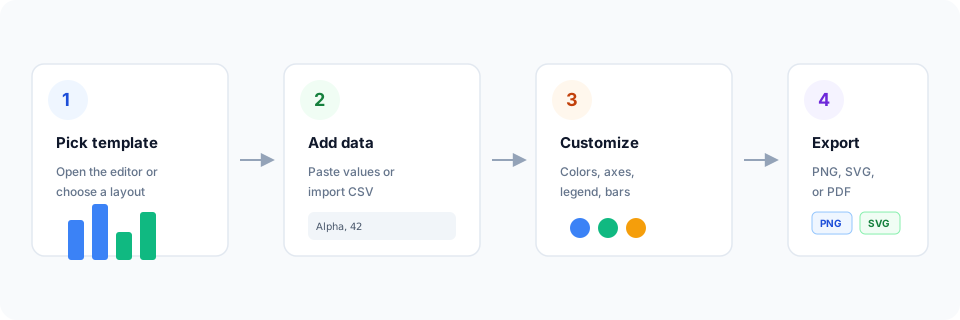
- Open the bar graph editor or choose a template below—column, horizontal, grouped, or stacked.
- Replace sample data with your own numbers, or import a CSV file into the data table.
- Customize colors, axis titles, legend, and bar styles until the chart reads clearly.
- Export as PNG, SVG, or PDF and drop the file into your slide deck or report.
What is a bar chart?
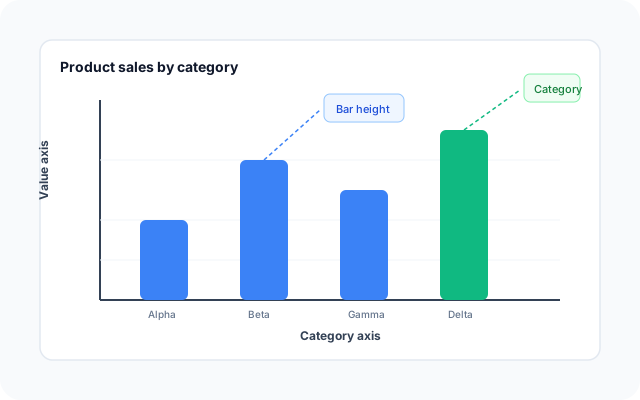
A bar chart—often called a bar graph or barplot—uses rectangular bars to show values across categories. The length or height of each bar represents a numeric amount, which makes it straightforward to rank products, survey answers, or regional performance at a glance.
Vertical layouts are column charts in spreadsheet and BI tools; horizontal bar graphs help when category labels are long. Grouped bars support double-bar comparisons; stacked or segmented bars show how parts add up to a total within each category.
Whether you need a bar chart maker, column chart creator, or bar graph generator, the workflow here is the same: load data, pick an orientation that fits your labels, and let the bars show which categories lead and which lag behind.
Bar chart vs line chart vs pie chart
Use a bar chart when categories are discrete—product names, departments, or survey options—and you want viewers to compare magnitudes or rankings at a glance. Line charts read better when the horizontal axis has a meaningful order, such as time, and the story is about trend or momentum.
Pie and doughnut charts show share of a single total with a small number of slices. When you have many similar-sized segments or need to compare exact values across categories, bars usually communicate differences more clearly than angles on a circle.
Bar chart templates
Browse bar graph and column chart templates, then open any layout in the editor to replace sample data with your own.
Explore BeCharts
Jump to templates, the editor, documentation, and guides for bar charts and related workflows.
Bar chart templates
Browse every bar chart layout and open any example in the editor.
Open chart editor
Start with a bar chart template or switch to another chart type anytime.
BeCharts usage guide
Editor layout, data import, export options, and troubleshooting.
What is a bar chart?
Learn when bar charts work best and how they compare to line charts.
Types of charts
Match a question to bars, lines, pies, histograms, or scatter plots.
Histogram maker
Bin a numeric column when you need frequency, not category totals.
Chart template gallery
Explore line, pie, scatter, combo, and 15+ other chart types.
More chart makers
Frequently asked questions
- How do I make a bar graph?
- Click "Create your bar chart" or open any template on this page. Replace the sample data with your own values or import a CSV file, adjust colors and axis labels, then export PNG, SVG, or PDF from the toolbar.
- Is this a free bar graph maker?
- Yes. You can open the editor and bar chart templates without a credit card or account. Export options are available from the editor toolbar.
- What is the difference between a column chart and a bar chart?
- In everyday use, "column chart" usually means vertical bars and "bar chart" can mean either orientation. BeCharts treats both as the same chart type—you pick vertical columns or horizontal bars in the editor without changing your data.
- How do I make a horizontal bar chart?
- Open a horizontal bar template or switch orientation in the Series panel after loading data. Horizontal layouts keep long category labels readable along the Y axis.
- What is the difference between a bar chart maker and a bar graph generator?
- They refer to the same tool. "Bar chart maker" and "bar graph creator" are common in education and search; "bar graph generator" appears in spreadsheet and BI contexts. BeCharts supports all three workflows in one editor.
- What data formats are supported?
- You can paste values into the data table or import CSV and Excel files. Google Sheets paste is also supported in the dataset panel. The first column is typically categories; remaining columns are numeric series.
- Can I create a bar chart from CSV?
- Yes. Import a CSV from the dataset panel, confirm column headers, and map fields to categories and values. You can edit cells in the table after import before exporting.
- Can I make a grouped, double bar, or stacked chart?
- Yes. Add multiple numeric columns for grouped or side-by-side bars, or enable stacking for a segmented bar layout. Grouped and stacked templates are available on this page.
- Can I switch between vertical and horizontal bars?
- Yes. The editor lets you change orientation and bar width without losing your data. Horizontal layouts work well when labels need more room.
- Can I customize bar colors for each series?
- Yes. Select a series in the Customize panel and change bar color, border radius, width, and data labels. Settings can apply to one series or all series at once.
- Can I label individual bars with values?
- Yes. Toggle data labels on the series to show values at the end or center of each bar.
- When should I use a bar chart instead of a line chart?
- Use bars when categories are discrete and you want to compare magnitudes or rankings. Line charts are better for ordered time series where the story is trend or rate of change.
- What is a bar chart and when should I use one?
- A bar chart compares numeric values across categories using bar length or height. Use one when categories are independent—products, regions, or survey options—and exact comparisons or rankings matter more than continuous trend.
- What file formats can I export?
- PNG and SVG are supported for digital use, and PDF for documents. Exports reflect the styles you set in the editor.
- Is there a limit on the number of categories?
- You can add many rows in the data table. For very long lists, a horizontal bar layout usually keeps labels readable.