

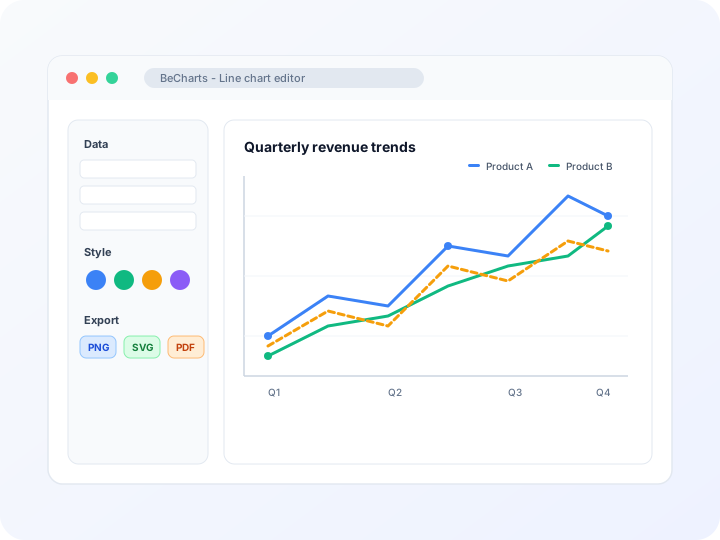
- Free line graph maker online—no credit card needed
- Line graph creator with multiple series and custom colors
- Export PNG, SVG, or PDF for slides and reports
- AI-assisted data setup and 20+ chart types in the editor
Fully customizable line graphs
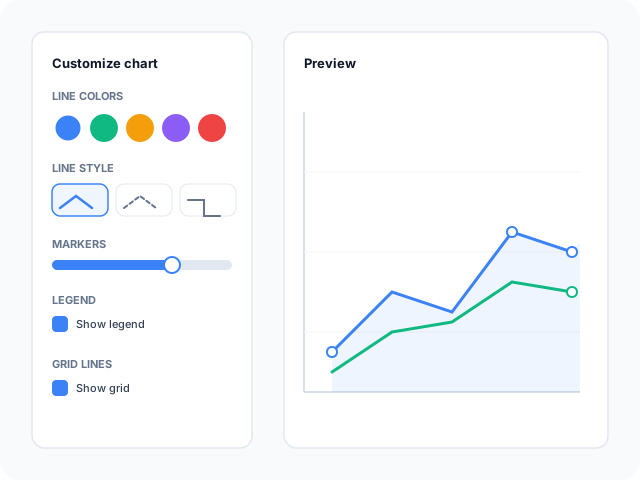
Adjust line colors, markers, axis labels, legends, and grid lines in the editor sidebar. Switch between smooth curves, straight segments, and step lines to match how your data was recorded.
Organize and import your data
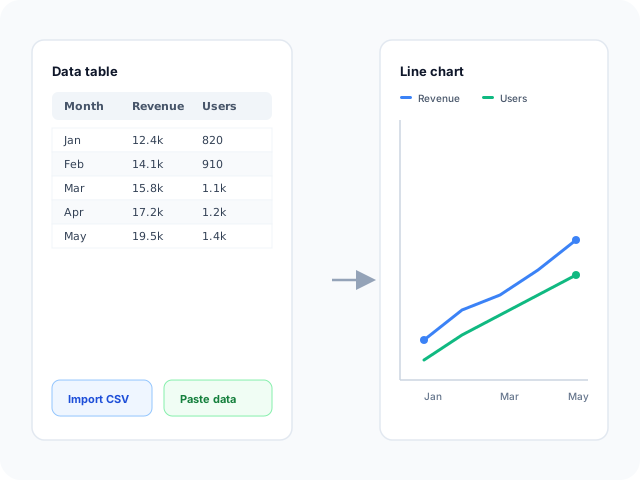
Paste values into the data table, import CSV or Excel files, or describe the dataset you need with AI assistance. Map columns to categories and series without rebuilding the chart from scratch.
Export for presentations and reports
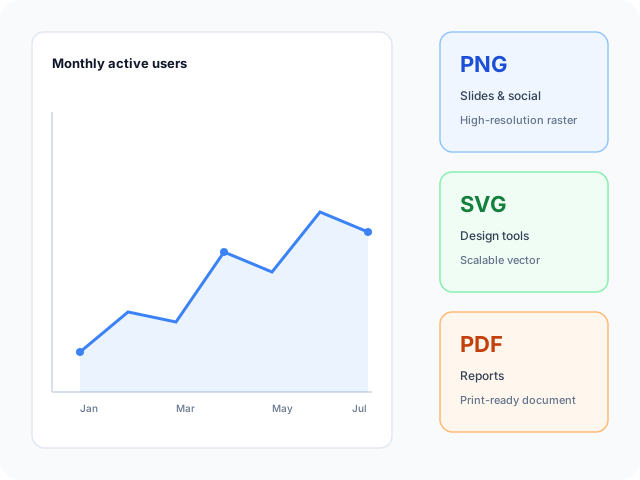
Download high-resolution PNG for slides, vector SVG for design tools, or PDF for documents. Styles you set in the editor carry through to every export format.
Line graph templates and chart types
Start from a layout that matches your data story—single trends, multiple line graphs, filled areas, smooth curves, or step lines—then open any example in the editor.
- Basic line chartPlot one metric across ordered categories or dates. Ideal for a single KPI trend such as monthly revenue or daily active users.
- Multiple line graphCompare several series on one axis—products, regions, or channels—with distinct colors and legend labels for each line. Ideal for multi-line graph layouts.
- Area chartAn area chart is a line graph with the region under the line filled. Use it when the story is volume or a stacked share over time, then set fill opacity in the Series panel.
- Smooth line chartUse curved interpolation for continuous data where straight segments feel too angular, such as temperature or growth curves.
- Step line chartShow discrete changes at each category—inventory levels, pricing tiers, or stage-based metrics—without implying values between steps.
Popular use cases for line graphs
Trend graphs work whenever values change across an ordered axis. These are common workflows teams build with the editor and export for slides or reports.
Sales and revenue trends
Track monthly or quarterly revenue, pipeline growth, or subscription MRR. Multi-line layouts let you compare product lines on the same timeline.
Website and marketing analytics
Visualize traffic, sign-ups, bounce rate, or campaign conversions over weeks and months. Date columns map cleanly to the horizontal axis.
Performance metrics and KPIs
Plot OKRs, retention, or operational targets for executive summaries. Export PNG or PDF when the chart is ready for a deck or status report.
Multi-series comparison
Contrast cohorts, regions, or experiments on one chart. Assign a color per series and keep the legend readable for stakeholder reviews.
Financial and stock time series
Chart price or index movement across trading sessions or fiscal periods. Log-scale templates are available when values span wide ranges.
Historical data with forecasts
Plot actuals alongside projected values by adding a second series for forecast rows. Keep actual and projected lines visually distinct in the editor.
Editor features for trend charts
Templates, styling controls, and export options to move from raw data to a clear trend chart quickly.
Line graph templates
Jumpstart from ready-made layouts—single series, multi-line graphs, stacked area, and dual-axis examples you can open in one click.
Advanced styling
Tune colors, fonts, line width, area fills, and legend placement so the chart matches your deck or dashboard.
Multi-series trends
Plot several lines on one chart to compare products, regions, or cohorts over the same time axis.
Data import
Bring spreadsheet data in through CSV upload or paste, then bind columns to the X and Y axes in the editor.
AI-assisted setup
Describe the metric you need and generate sample rows, then refine values before rendering the chart.
Export and share
Save PNG, SVG, or PDF files for presentations, documentation, and social posts.
Common line graph workflows
Common search tasks mapped to editor workflows—from CSV import and multi-series styling to PNG, SVG, and PDF export.
- Line graph maker
- Open the free editor, pick a line graph template, and replace sample data. No account or credit card is required to create and export.
- Line graph creator and generator
- Generate trend graphs from CSV or Excel in the browser. Columns bind to categories and series so you do not rebuild axes from scratch.
- Create a line graph online
- Paste spreadsheet rows or upload a file, map fields to the X and Y axes, and render a line graph you can customize and download.
- Line chart generator
- Build time-series and category-based line charts with the same tool—templates cover single trends, dual axes, and filled areas.
- Multiple line graph
- Add several numeric columns in the data table, then set line colors, widths, and markers per series for multi-line comparisons.
- Line plot maker
- Plot ordered data points connected by lines—useful for experiments, KPI tracking, and scientific series where each point matters.
How to make a line graph in 4 steps
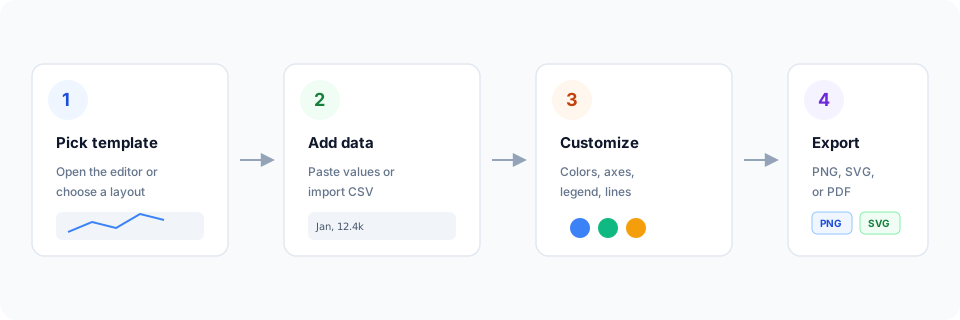
- Open the line graph editor or choose a template below that fits your layout.
- Replace sample data with your own numbers, or import a CSV file into the data table.
- Customize colors, axis titles, legend, and line styles until the graph reads clearly.
- Export as PNG, SVG, or PDF and drop the file into your slide deck or report.
What is a line graph?
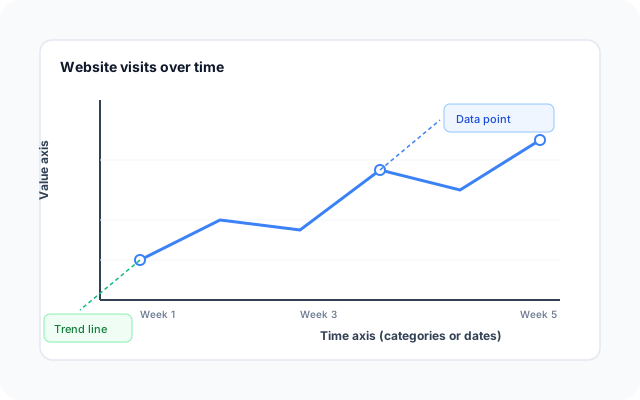
A line graph connects data points with lines so viewers can see how a value changes across ordered categories—most often time. The horizontal axis usually shows dates or stages; the vertical axis shows a numeric metric such as revenue, visits, or temperature.
Line graphs excel at showing trends, momentum, and seasonal patterns. They are among the most common visualizations in business reports and dashboards because they are easy to read at a glance. When you have many overlapping series, keep the count manageable or emphasize the most important lines to avoid a cluttered "spaghetti" graph.
Whether you call it a line graph, line chart, or line plot, the workflow is the same: load data, pick a sensible axis scale, and let the line show the story your numbers tell over time.
Line chart vs bar chart vs area chart
Use a line chart when the horizontal axis has a meaningful order—time, stages, or ranked periods—and you want viewers to follow how a value moves. Bar charts read faster when comparing unrelated categories or showing rankings at a single point in time.
Area charts build on line charts by filling the region under one or more lines, which highlights volume or share of a total. In BeCharts you can enable area fill on any line series or start from an area template, then export the result like any other chart.
Line graph templates
Browse line graph examples, then open any layout in the editor to replace sample data with your own.
Explore BeCharts
Jump to templates, the editor, documentation, and guides for line charts and related workflows.
Line chart templates
Browse every line chart layout and open any example in the editor.
Open chart editor
Start with a line chart template or switch to another chart type anytime.
BeCharts usage guide
Data formats, CSV import, and styling options for line series and axes.
What is a line chart?
Learn when line graphs work best and how they compare to bar charts.
X axis and y axis
See which values belong on each axis of a line graph.
Types of charts
Match a question to lines, area charts, bars, or scatter plots.
Chart template gallery
Explore bar, pie, scatter, combo, and 15+ other chart types.
More chart makers
Frequently asked questions
- How do I make a line graph?
- Click "Create your line graph" or open any template on this page. Replace the sample data with your own values or import a CSV file, adjust colors and axis labels, then export PNG, SVG, or PDF from the toolbar.
- Is this a free line graph maker?
- Yes. You can open the editor and line graph templates without a credit card or account. Export options are available from the editor toolbar.
- What is the difference between a line graph maker and a line chart generator?
- They refer to the same tool. "Line graph maker" and "line graph creator" are common in education and search; "line chart generator" appears in spreadsheet and BI contexts. BeCharts supports all three workflows in one editor.
- What data formats are supported?
- You can paste values into the data table or import CSV and Excel files. Google Sheets paste is also supported in the dataset panel. The first column is typically categories or dates; remaining columns are numeric series.
- Can I create a line graph from CSV?
- Yes. Import a CSV from the dataset panel, confirm column headers, and map fields to the X and Y axes. You can edit cells in the table after import before exporting.
- Can I make a multiple line graph?
- Yes. Add multiple series in the data table—each column can map to its own line with independent color and style settings. Multi-line graph templates are available on this page.
- Can I use this as a line plot maker?
- Yes. A line plot connects ordered observations with straight or curved segments—ideal for experiments, KPI series, and any dataset where each point should be visible on the graph.
- Can I customize line colors for each series?
- Yes. Select a series in the Customize panel and change line color, width, dash style, markers, and area fill. Settings can apply to one series or all series at once.
- Can I add markers to data points?
- Yes. Use the Symbol settings under Series to show circles, diamonds, or other markers at each point, or hide markers for a cleaner trend line.
- What is the difference between a line chart and an area chart?
- Both use lines over an ordered axis. An area chart fills the region under the line (or lines) to stress volume or stacked contribution. In the editor you can enable area fill on a line series or start from an area template.
- What is a line graph and when should I use one?
- A line graph connects ordered data points with lines to show how a metric changes over time or across stages. Use one when the horizontal axis has a logical sequence and the story is about trend, momentum, or rate of change—not one-off category rankings.
- What file formats can I export?
- PNG and SVG are supported for digital use, and PDF for documents. Exports reflect the styles you set in the editor.
- Does the line graph maker support date axes?
- Yes. When your first column contains dates or ordered labels, the graph treats the axis as a category or time scale depending on your data format.